

How to Download Your Ancestry Family Tree as a GEDCOM File
Heart of the Family is a participant in the Amazon Services LLC Associate Programs and other affiliate services. This means that thefamilyheart.com receives a small commission by linking to Amazon.com and other sites at no cost to the readers.
Updated May 2026
Ancestry family trees are a wonderful resource for collecting hints and collaborating with cousins. But relying on any single website to store your family history research is risky. Platforms change hands, databases come and go, and sometimes services shut down with little warning. (If you followed the 23andMe situation, you already know how quickly things can shift.)
That’s why it’s so important to keep a local backup of your tree. Fortunately, Ancestry makes it easy to download your family tree as a GEDCOM file, which is the universal file format used by genealogy software and websites to exchange family tree data.
A GEDCOM (short for Genealogical Data Communications) export captures the people, relationships, events, and source citations in your tree. It does not include photos, documents, or other media you’ve uploaded. We’ll talk more about that below.
Ready to back up your tree? Here’s how to do it.
How to Download Your Ancestry Family Tree
Before you begin, you’ll need to be logged in to Ancestry on a desktop or laptop computer using a web browser. A paid subscription isn’t required to download your own tree, but you do need to be the tree’s owner. If you’ve been invited to someone else’s tree as a guest, contributor, or editor, you won’t have the export option available. In that case, you’ll need to contact the tree owner and ask them to send you a copy.
This process takes about 10 minutes, and most of that time is spent waiting for Ancestry to compile your file.
Step 1: Open your tree and go to Tree Settings.
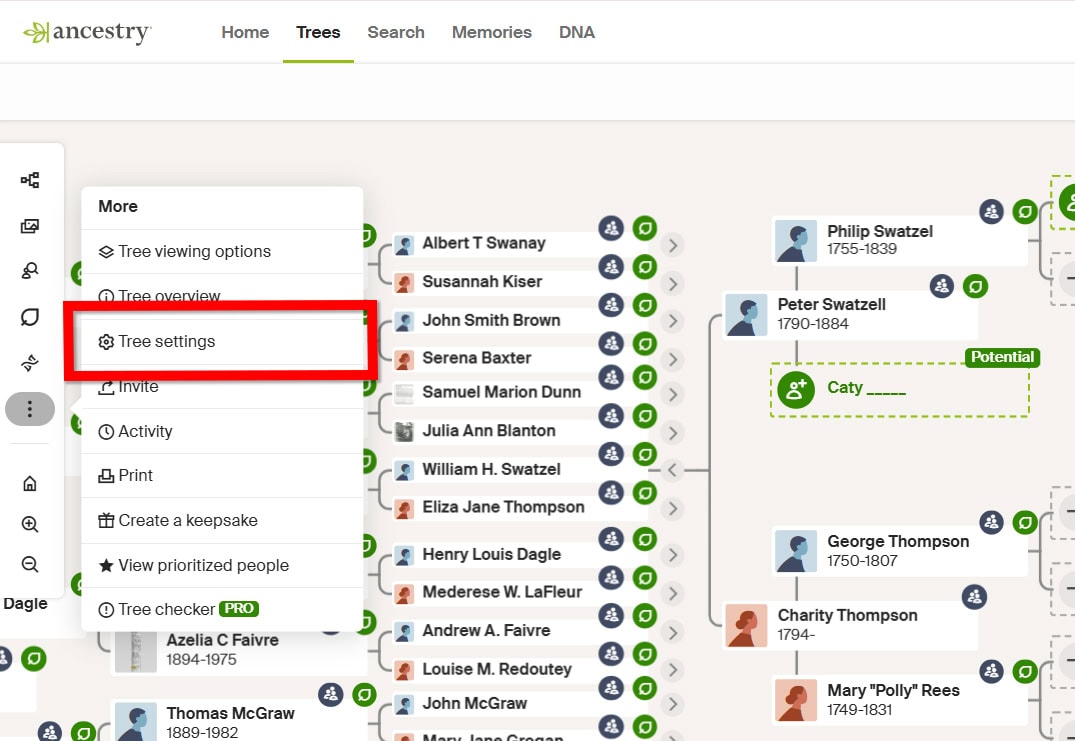
Log in to Ancestry and open the tree you want to download. Click the More option (three dots on the side menu), then select Tree Settings.
Step 2: Click “Export Tree.”
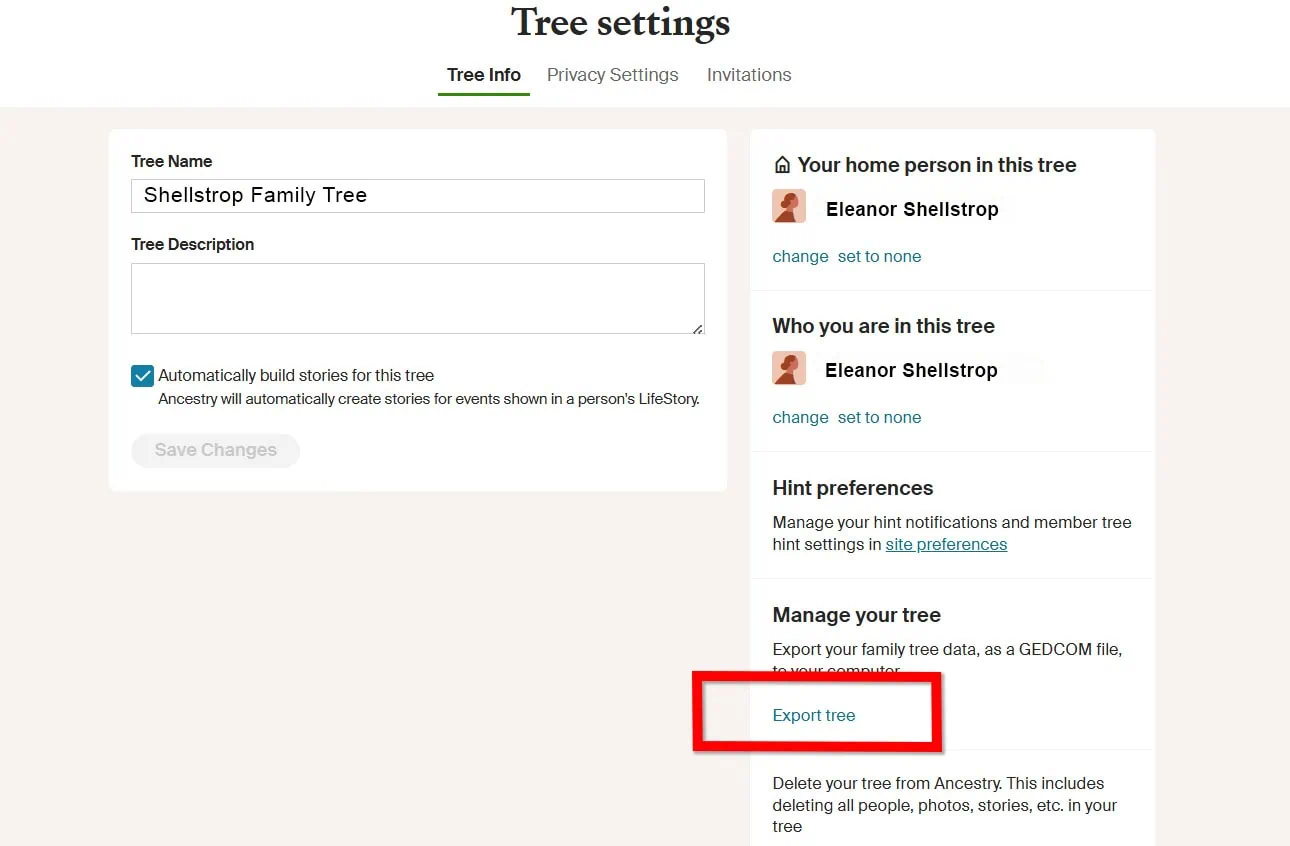
On the Tree Settings page, make sure the Tree Info tab is active. Click the Export Tree button to begin compiling your tree into a downloadable GEDCOM file.
Be patient with this step. If you have a large tree, it may take several minutes for Ancestry to process the file. You can navigate away from the page and come back later if needed; the file will continue generating on Ancestry’s servers.
Step 3: Download your GEDCOM file.
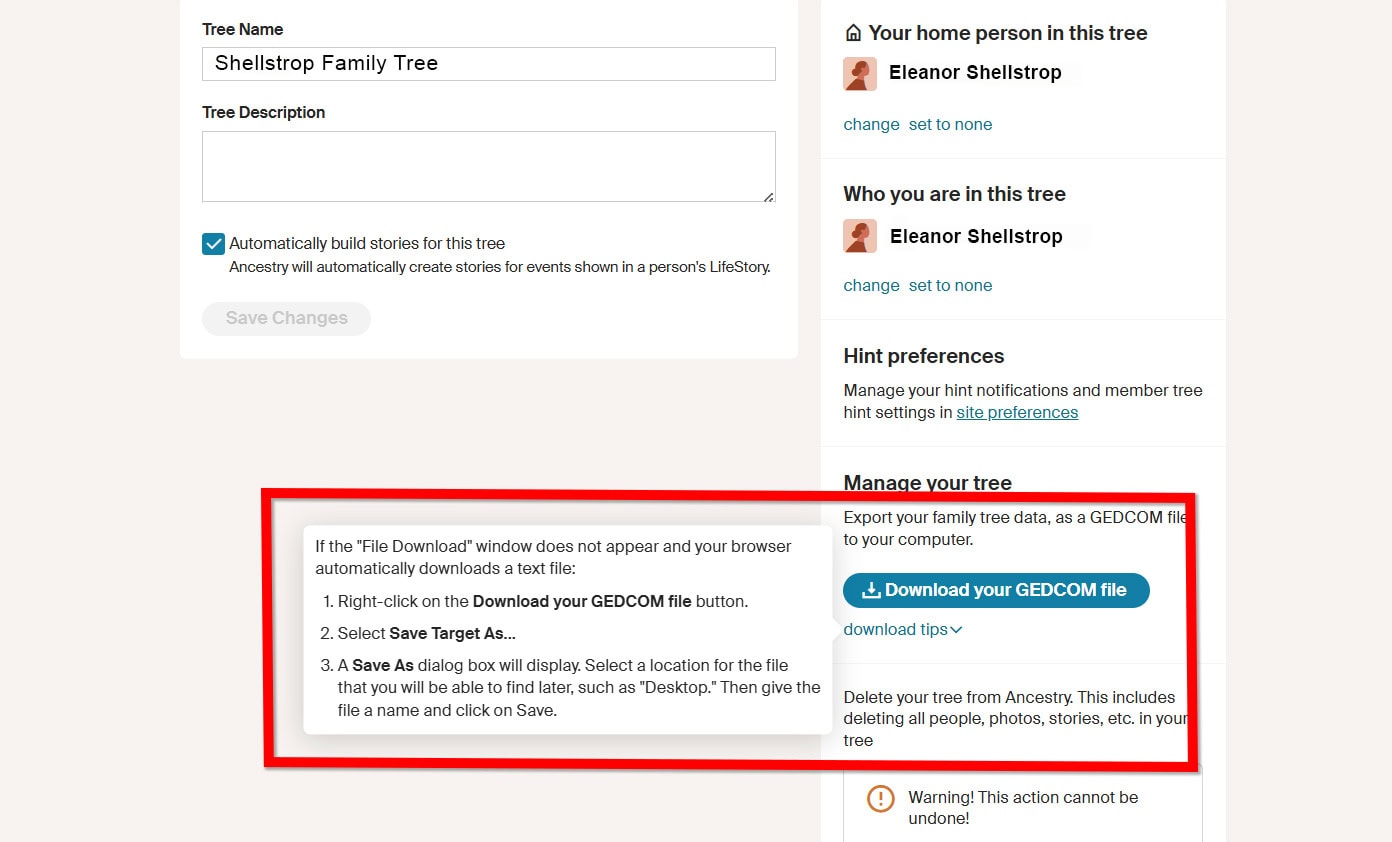
When your GEDCOM file is finished compiling, a Download button will appear in the same area. Click it to save the .ged file to your computer.
The file will download to your browser’s default downloads folder (usually called “Downloads”). Look for a file with your tree’s name and a .ged extension.
That’s it! You now have a local backup of your Ancestry family tree.
What’s in a GEDCOM File (and What Isn’t)
Your GEDCOM file contains the people, relationships, life events, and source citations from your tree. It’s a text-based file, so it captures your research data rather than visual elements.
What it does not include is photos, documents, and other media you’ve saved or uploaded to your tree. You’ll need to download those separately from your Ancestry media gallery. The alternative is to use genealogy software that can sync directly with your Ancestry tree and pull records and media simultaneously, such as Family Tree Maker or RootsMagic. Both programs connect to Ancestry and can transfer your full tree, including attached media, without relying on a GEDCOM export.
What to Do with Your Downloaded File
Once you have your GEDCOM, you have several options. You can import it into desktop software like RootsMagic or Family Tree Maker for offline research. You can upload it to another website, such as FamilySearch or MyHeritage, to access their record collections and matching tools. Or you can simply store it as a backup on your computer, an external hard drive, or a cloud storage service like Google Drive or Dropbox.
Keep in mind that your GEDCOM is a snapshot of your tree at the time of download. If you continue making changes on Ancestry, you’ll want to download a fresh copy periodically to keep your backup current.
A Few Things to Watch For
Data transfer isn’t always perfect. Some information, including unusually long or hyphenated names, certain special characters, and detailed formatting in notes, may not transfer cleanly between programs via GEDCOM. It’s always a good idea to review your tree after importing it into a new program and check for anything that looks off.
GEDCOM versions. Ancestry exports your tree in GEDCOM 5.5.1 format, which is supported by virtually all genealogy software and websites. You may have heard about GEDCOM 7.0, a newer version with improved support for multimedia and character encoding. While GEDCOM 7.0 is gaining traction (particularly through FamilySearch), it is not yet what Ancestry uses for exports. For most users, this won’t matter; GEDCOM 5.5.1 works with everything.
Downloading on a tablet or phone. The downloading process works best on a desktop or laptop computer. While you can access Tree Settings from a mobile browser (not the Ancestry app), downloading and working with GEDCOM files on a mobile device can be tricky since most genealogy software runs on a desktop.
Wrap Up
Your Ancestry tree represents hours, months, or even years of research. Downloading a GEDCOM backup takes just a few minutes and is one of the simplest ways to protect that work. Whether you store the file on your computer, import it into desktop software, or upload it to another platform, having a copy that you control means you’re never entirely dependent on a single website to keep your research safe.
If you haven’t downloaded your tree before, I’d encourage you to do it today. And if it’s been a while since your last backup, now is a great time to grab a fresh copy. Future you will be glad you did.



This post contains affiliate links. I may receive a small commission if you choose to make a purchase, but it does not add anything extra to the price you pay. For more, please read my full Disclosure Statement. I appreciate your support!









Adding this one to our WikiTree Gedcom resources, Elizabeth. Thanks (-:
Thanks, Magda! I’m glad you found the post useful. 🙂
The timing of your post couldn’t be better, as I was looking this up this topic yesterday. Very useful – thank you.
Thank you, Sue! I’m glad you found the post to be useful. 🙂
Hi Elizabeth, I always advise all of my beginner genea-addicts to start with software and then upload a tree. That way, they will never be caught unawares! It’s great that you are reminding those who began with an online website to download and save their work.
That’s good advice, Linda! I keep very little on my online trees. You just never know when they will become unusable or vanish completely. Better secure than sorry!
I moderate a genealogy group on Facebook. Many of the members have their trees on Ancestrydotcom. I’ve shared this with them as I’m not sure many of them thought of the need for a backup. Thanks for these great instructions!
I hope your group members find it to be helpful, Melody. Thank you for sharing! 🙂
This doesn’t work on Tablets for downloading.
No, it sure doesn’t, Ally. You definitely can’t download your tree from within the Ancestry app (at least, I couldn’t find a way), but if you log into the regular site using your device’s browser, you can get as far as the DOWNLOAD YOUR GEDCOM FILE button. Unfortunately, when you click on the button, it opens the GEDCOM and displays it as text. I tried to do this on a Kindle Fire HD, an iPad mini, and an iPhone 6S Plus, but I could not download the data and convert it into a format that my RootsMagic software would open.
To be honest, I’m not really sure why you would want to download your file from a tablet or mobile device anyway. Most of the popular genealogy software programs are desktop-based. Even those that have a companion mobile app would still need to be set up and managed from the desktop.
If anyone out there knows how to do this, I’d love to hear from you! 🙂
This is really the easiest way that I’ve met to do just four simple steps to create a tree.
Does it also download the pictures, attached files please???
No. You need to download those separately and they aren’t attached as they are in the Ancestry tree. It’s always a good idea to keep copies of anything you find. I’ve had webpages/pictures disappear and unless I had a copy before it happened, they’re usually gone for good. Ancestry has been known to remove things from their website from time to time also. If you want it, save it.
As far as I’m aware it doesn’t download the documents, only the tree. I always download documents to a folder which I name Ancestry on my computer at the same time as I add them on my tree, that way they’re easier to print, save to a key or email to myself. I don’t know of any app which downloads documents as well as the tree together. I would love to hear of one if anyone knows of one.
Helen
After the tree is downloaded, how does it update when you make additions/changes?
Hi Lisa, You really can’t make changes to the downloaded file unless you upload it somewhere else and work with it there. Downloading your Ancestry tree is just a way of preserving your research at the time of download, so if you make changes to your tree on Ancestry, you would need to download it again to get a current copy of your tree. That said, if you’re using software on your computer that links directly to your tree, such as Family Tree Maker, then the copy on your computer should be updated each time you open it and let it connect with your Ancestry tree. I don’t use FTM, and I’m not an expert on it, so be sure to check it out for yourself.
Thanks, very useful, I will try it.
You’re very welcome, Suzanne!
Does this cost money for the family tree
A timely reminder. Its on my “Today” list. Thanks
You’re welcome, Vicki! Good luck! 🙂
How do you download pictures from Ancestry.com?
copy and paste
you might to copy and paste.
I use Opera browser which has a camera icon on it which enables you to either take a picture of the page you are looking at and download to your computer, or save the page as a PDF .
Helen
Something I’ve discovered while reading GEDCOM files (I make family trees from the data) is that INFORMATION NEEDS TO BE COMPLETE. I’m not yelling, I just like all caps. Really, it is important. GEDCOM files are fickle files. Another important item is to sort by surname. If your software allows the creation of a GEDCOM by family then you should use that option. For example, make separate trees for your fathers or for your mothers family and not one giant tree containing both. At some point it needs to divide for the sake of organization. I’ve used my maternal and paternal names and my wife’s maternal and paternal names – all separately. [email protected]
Great instructional post. Very clear and easy to follow.
I have been using Ancestry for 10 years. I was so excited to get all the information and pictures into the program. My grandmother had done it for 78 years and I took it over from her. BIG PROBLEM. All of a sudden the program changed and in the parents box cousins names came it and it was all messed up. I had to quit using it and go back to pen and paper! I wrote Ancestry for help at least one dozen times and NO ANSWER OR HELP! ALSO if you change to Apple you have to repurchase the program and start over putting all you information and pictures into the program. SORRY to my family I encouraged to get the program!
Hi LaVon! I’m not sure I understand your question. Ancestry is a website, not a software program, so switching from Windows to Mac wouldn’t cause anything to change. Could you possibly have logged in with the wrong account? Or maybe imported someone else’s information into your tree? I’ve done that before and created such a mess that I had to start over. I hope you get it figured out!
How can I share this post? It is extremely relevant.
Hi John – I’d love to have the post shared! There are social share buttons to the left of your screen and at the very bottom of the post. 🙂
Great article.
Thank you, Alan!
Hello! I followed your steps but when I try to open it to see the tree, it is all listed top to bottom like a program would be. Can you help?
Pamela – You don’t download your GEDCOM file to view the contents! You do so to keep as a backup and/or you have decided to move to another ancestry site where you can simply import your GEDCON file – which saves a lot of work. You can also help a relative who wants to start their own family tree by sending them your GEDCOM file where after importing they can edit as needed – remove/add people. Note: GECCOM files do not include media galleries.